Bluetooth With Headphones
A practical step-by-step guide to bluetooth with headphones, including preparation, instructions, common issues, tips, and next steps.
Bluetooth With Headphones
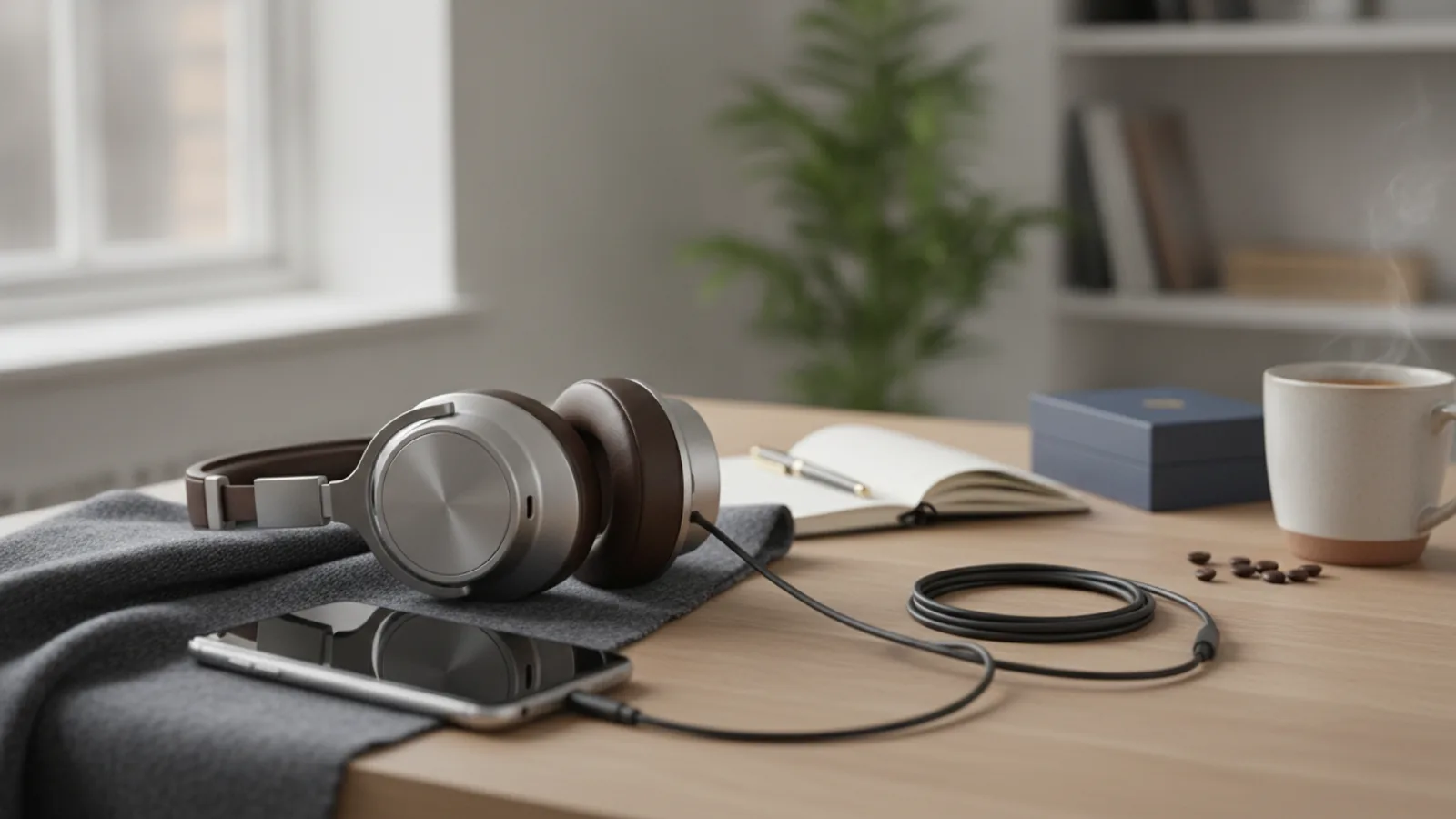
Connecting your headphones via Bluetooth is the key to enjoying wireless audio, whether you're listening to music on your commute, taking calls on the go, or immersing yourself in a game at home. This guide provides a clear, step-by-step process for pairing your Bluetooth headphones with any phone, tablet, or computer. We'll walk you through the entire setup, from initial checks to troubleshooting common issues, ensuring you achieve a stable and high-quality wireless connection every time.
Fast Answer
- Key Action: Enable Pairing Mode on your headphones (usually by holding the power button until a light flashes).
- Then: Open Bluetooth settings on your phone or computer, find your headphones in the list, and select to connect.
Before You Start
- Your Bluetooth headphones: Ensure they have at least 50% battery charge to prevent them from turning off during the pairing process.
- Your source device: This is the phone, tablet, laptop, or computer you want to connect to. It should also be charged.
- Your headphone manual (optional but recommended): Keep it handy to find the specific instructions for activating pairing mode, as this can vary between models.
Step-by-Step Instructions
Step 1: Charge Your Devices
Before attempting to pair, ensure both your headphones and your source device (phone, laptop, etc.) have adequate battery life. A low battery is a common cause of pairing failures and connection drops. We recommend charging both to at least 50% to ensure a stable connection during setup and testing. This simple step prevents the frustrating experience of a device powering down mid-process.
Step 2: Activate Pairing Mode on Your Headphones
This is the most crucial step. Your headphones need to be in a special "discoverable" or "pairing" mode to be seen by new devices. Simply turning them on is often not enough for the first connection.
Typically, you activate this mode by pressing and holding the power button for 5-10 seconds, even after you hear the "power on" sound. Continue holding until you hear a second sound cue or see an indicator light—usually blue or white—begin to flash repeatedly. For headphones with a dedicated Bluetooth button, you will hold that instead. If you're unsure, consult your headphone's manual for the exact procedure.
Step 3: Enable Bluetooth on Your Source Device
Now, turn to your phone, tablet, or computer and navigate to its Bluetooth settings menu. This process differs slightly depending on your operating system.
- On an iPhone or iPad (iOS): Go to Settings > Bluetooth and toggle the switch to the on position (it will turn green).
- On an Android device: Swipe down from the top of the screen to open the Quick Settings panel and tap the Bluetooth icon. Alternatively, go to Settings > Connected devices > Connection preferences > Bluetooth and turn it on.
- On a Mac (macOS): Click the Control Centre icon in the top-right menu bar, then click the Bluetooth icon to turn it on. You can also go to System Settings > Bluetooth.
- On a Windows PC: Click the network icon in the bottom-right taskbar and click the Bluetooth button to enable it. Or, go to Start > Settings > Bluetooth & devices and toggle the switch on.
Step 4: Find and Select Your Headphones
Once Bluetooth is enabled, your source device will automatically begin scanning for nearby discoverable devices. After a few moments, a list of available devices will appear. Look for the name of your headphones in this list. It will usually be the brand and model number, for example, "Sony WH-1000XM5" or "Bose QC Ultra".
Tap or click on the name of your headphones to initiate the pairing process. The status should change from "discoverable" to "pairing" or "connecting."
Step 5: Confirm the Pairing Request
In most modern pairings, the connection happens automatically. However, some devices may display a pop-up asking you to confirm the connection or verify a numeric passcode. If a passcode appears on your screen, ensure it matches any code displayed by your headphones (this is rare) and tap "Pair" or "Connect". If prompted for a PIN, older devices sometimes require a generic code like 0000, 1111, or 1234, though this is now very uncommon.
Step 6: Test the Audio Connection
Once successfully paired, the status next to your headphones' name will change to "Connected" or show a battery life indicator. The flashing pairing light on your headphones will also change to a solid colour or a slow, periodic pulse. To be certain everything is working, open a music app, video, or podcast on your source device and play some audio. Confirm that the sound is coming through your headphones and not the device's speakers.
Quick Reference
| Situation | Use this | Why |
|---|---|---|
| Connecting for the first time | Use Pairing Mode | This makes your headphones visible to new devices they haven't connected to before. |
| Reconnecting to a familiar device | Just turn headphones on | Most headphones automatically reconnect to the last used device when powered on. |
| Switching between two paired devices | Disconnect from the first device | This frees up the connection, allowing the headphones to connect to the second device. |
| Audio is choppy or stuttering | Move closer to your source device | This strengthens the Bluetooth signal and reduces interference or dropouts. |
Common Problems When You bluetooth with headphones
My headphones don't appear in the Bluetooth list
This is the most frequent issue. First, double-check that your headphones are truly in pairing mode (flashing light), not just powered on. If they are, try turning Bluetooth off and on again on your source device to force a new scan. Also, ensure no other previously paired device, like your tablet or laptop, has automatically connected to them first. If it has, disconnect from that device before trying to pair the new one.
The connection failed or keeps asking for a PIN
If the connection fails, try moving the headphones and source device even closer together. On your source device, find the headphones in the Bluetooth list, select "Forget this device," and then restart the entire pairing process from Step 2. If a PIN is requested, try the common defaults: 0000 or 1234. If that doesn't work, a quick search for your headphone model's default PIN should provide the answer.
Audio is stuttering, choppy, or delayed
Poor audio quality is usually caused by a weak signal or interference. Reduce the distance between your headphones and the source device. Physical barriers like walls, and even your own body, can weaken the signal. Also, be aware of other wireless devices that can cause interference, such as Wi-Fi routers, microwave ovens, or even other Bluetooth devices. Disconnecting other unused Bluetooth accessories can often improve audio stability.
My headphones are connected, but there is no sound
This happens when the device is paired but not selected as the active audio output. First, confirm the volume is turned up on both the headphones themselves and your source device. Next, check your device's sound settings. On a computer, click the speaker icon and ensure your headphones are the selected playback device. On a phone, this is usually handled automatically, but you can check in the media controls to see where the audio is being routed.
Advanced Tips for bluetooth with headphones
- Explore Multi-Point Pairing: Many premium headphones support "multi-point," which allows them to stay connected to two devices simultaneously—for example, a laptop and a phone. This lets you listen to music on your laptop and seamlessly switch to answer an incoming call on your phone. Check your headphone's manual or companion app to see if this feature is available and how to enable it.
- Use the Companion App: Most major headphone brands (like Sony, Bose, Sennheiser, and Apple/Beats) offer a dedicated mobile app. These apps are invaluable for performing firmware updates, which can improve connectivity and add new features. They also provide access to equalisers (EQ), customisable controls, and other advanced settings.
- Understand Audio Codecs: Bluetooth audio is compressed using a codec. While the default SBC codec is universal, others like AAC (favoured by Apple) and aptX (common on Android and Windows) can offer higher-quality audio or lower latency. Your devices will automatically negotiate the best available codec, but on some Android phones, you can force a specific codec within the "Developer options" for fine-tuning.
- Perform a Factory Reset: If you encounter persistent, unresolvable issues, a factory reset can often be the solution. This will clear all previous pairing information from your headphones and restore them to their original settings. The procedure is specific to each model, so consult your manual for the button combination required.
Bluetooth With Headphones FAQ
What is the effective range of Bluetooth?
Most Bluetooth headphones have a standard range of about 10 metres (or 33 feet) in an open space. However, this range can be significantly reduced by physical obstacles like walls, doors, and furniture, as well as by wireless interference from other electronic devices.
Can I connect my Bluetooth headphones to a television?
Yes, if your television has built-in Bluetooth support. You can find this option in your TV's audio or sound settings menu. If your TV does not have native Bluetooth, you can purchase a separate Bluetooth transmitter. This small device plugs into your TV's headphone jack or optical audio port and broadcasts the audio signal to your headphones.
Why do my headphones keep disconnecting?
The most common reasons for random disconnections are low battery on either the headphones or the source device, exceeding the effective Bluetooth range, or significant wireless interference. Ensure both devices are charged, stay within range, and try to minimise the number of other active wireless devices nearby.
Final Checklist for bluetooth with headphones
- Both headphones and your source device are charged.
- Your headphones are in discoverable pairing mode, indicated by a flashing light.
- Bluetooth is switched on in your phone, tablet, or computer's settings menu.
- You have selected the correct headphone model name from the list of available devices.
- The connection status shows as "Connected."
- You have played audio and confirmed sound is coming through the headphones.