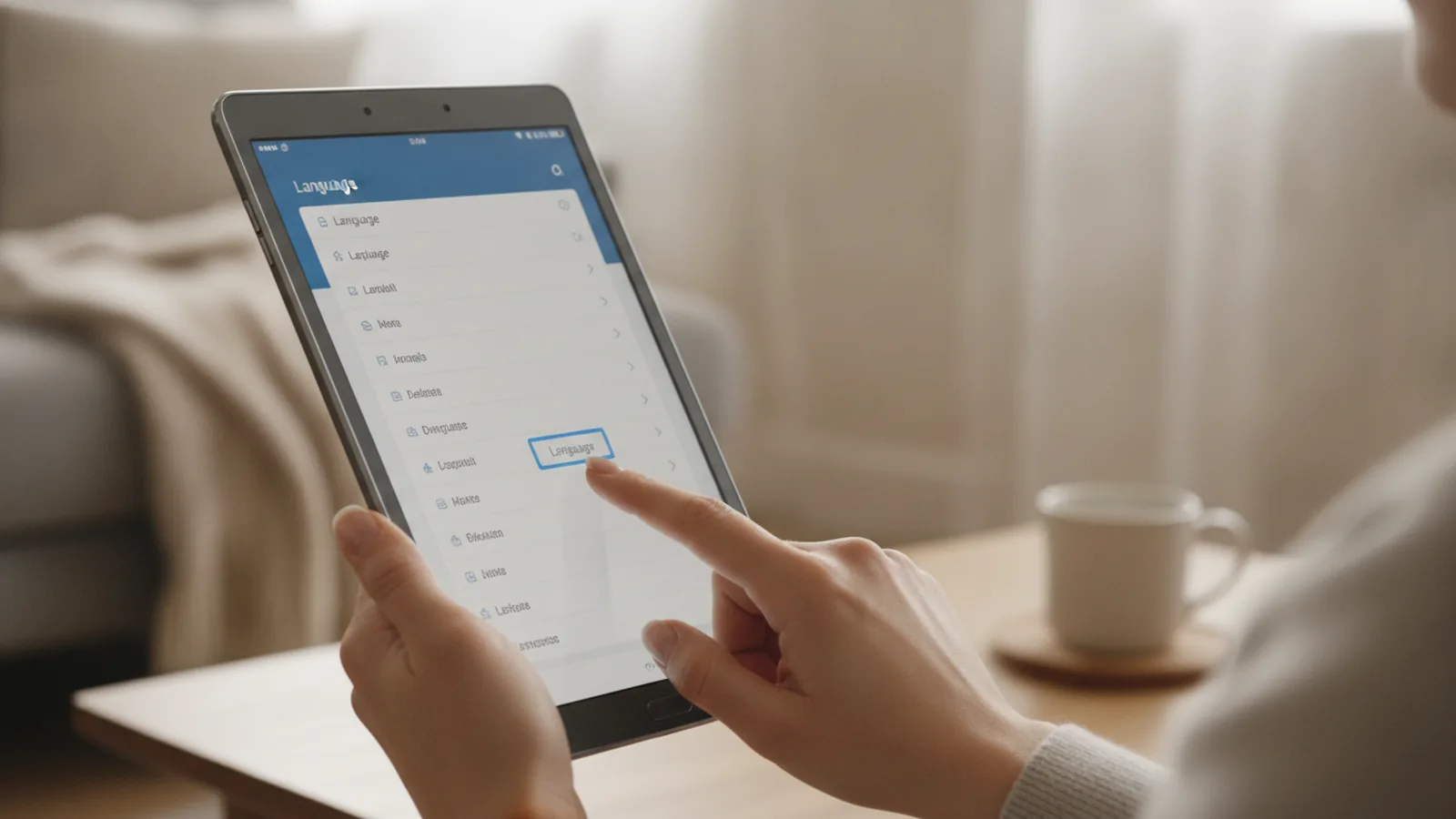
How To Adjust Monitor Brightness
A practical step-by-step guide to how to adjust monitor brightness, including preparation, instructions, common issues, tips, and next steps.
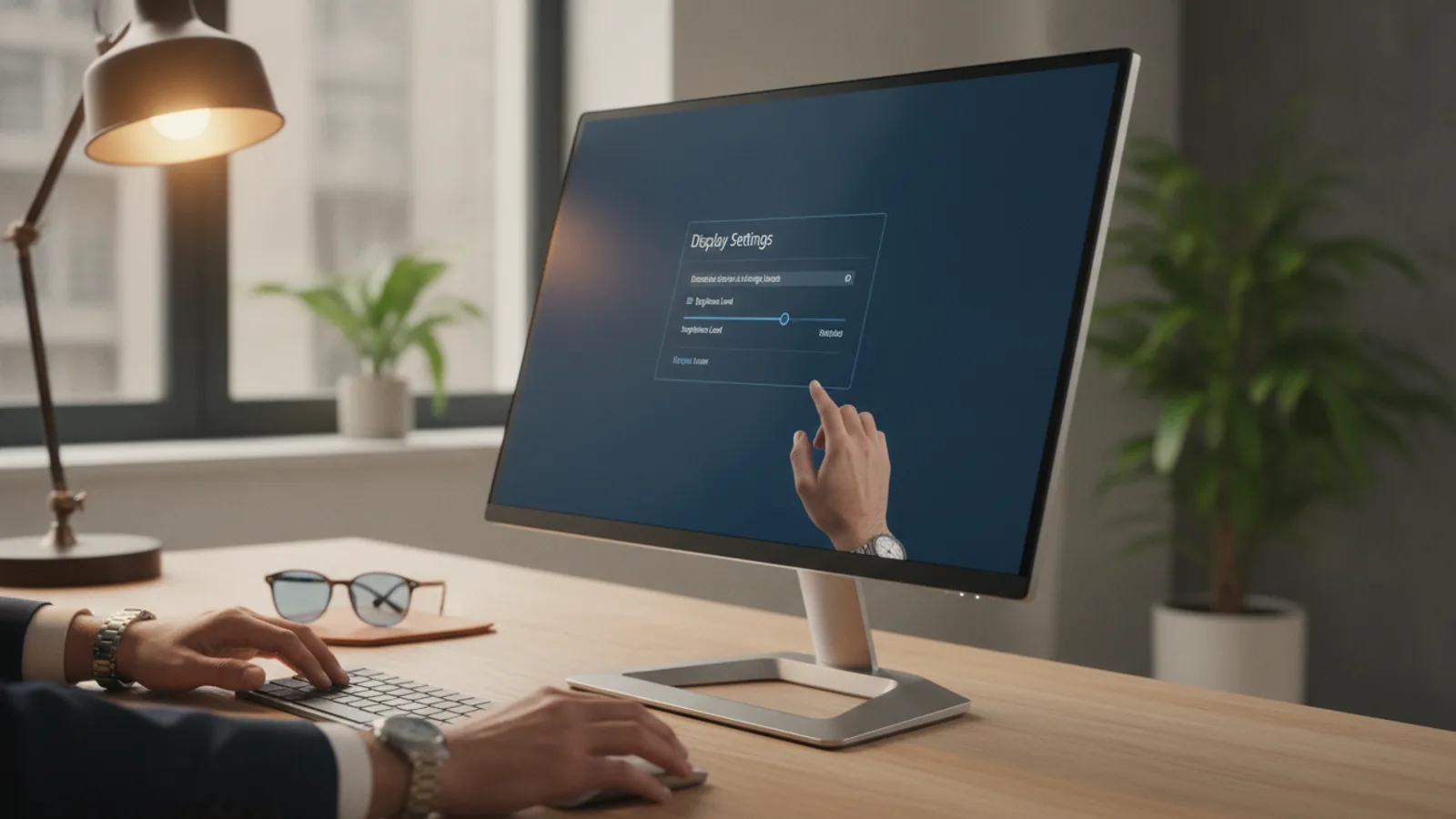
How To Adjust Monitor Brightness
This guide explains how to approach how to adjust monitor brightness, including the preparation, practical steps, common mistakes, and final checks that help you finish with confidence.
Before You Start
Step-by-Step Instructions
Quick Reference
Common Problems When You Adjust Monitor Brightness
Even with various methods available, you might encounter some common hurdles when trying to achieve the perfect screen brightness. Understanding these issues and their solutions can save you time and frustration.
Brightness Slider Greyed Out or Unresponsive
One of the most frequent problems is finding the brightness slider in Windows or macOS to be greyed out, or making adjustments yields no visible change. This often indicates that another setting or driver is taking precedence.
Brightness Resets After Reboot or Sleep
It can be frustrating when your carefully set brightness levels revert to defaults after a system restart or waking from sleep. This usually points to a software conflict or an application overriding your preferences.
Uneven or Flickering Brightness
If your screen's brightness appears uneven, with brighter or darker patches, or if it flickers unexpectedly, this could indicate a hardware issue or a deeper software problem.
Eye Strain Despite Adjusting Brightness
Even with brightness adjusted, if you still experience eye strain, it suggests other factors are at play, beyond just luminance.
Advanced Tips for Adjusting Monitor Brightness
Beyond the basic adjustments, there are several advanced techniques and considerations that can further optimise your monitor brightness for specific tasks and long-term eye health.
Calibrating Brightness for Specific Tasks
The "ideal" brightness setting can vary significantly depending on what you're doing. For example, photo and video editing demand colour accuracy, while gaming might benefit from higher contrast. General productivity, however, prioritises eye comfort.
Utilising Ambient Light Sensors
Many modern laptops, and some premium external monitors, include ambient light sensors. These sensors detect the light levels in your environment and automatically adjust screen brightness accordingly, much like your smartphone does.
Understanding Nits (cd/m²) and Luminance
When you see monitor specifications, brightness is often measured in **nits**, which is short for candela per square metre (**cd/m²**). This unit quantifies the luminance, or light emitted, by a display.
Ergonomics and Viewing Distance
Brightness is just one piece of the ergonomic puzzle. How you sit and where your monitor is positioned significantly impacts eye comfort.
Using Software Tools for Enhanced Brightness Control
Beyond built-in OS and GPU controls, various third-party software applications can provide more granular control over your display's brightness, especially if you have multiple monitors or specific needs.
How To Adjust Monitor Brightness FAQ
Here are answers to some frequently asked questions about monitor brightness to help you maintain optimal viewing conditions.
Final Checklist for Adjusting Monitor Brightness
Before you conclude your brightness adjustment, run through this quick checklist to ensure your setup is optimised for comfort and performance.
By following these steps and regularly checking your settings, you'll ensure your monitor provides a premium viewing experience, safeguarding your eye health and enhancing your digital lifestyle.
FAQ
What should I check before I start?
Check the goal, the key prerequisite, and any current instructions that could change the safest next step for how to adjust monitor brightness.
How can I tell whether the result is working?
Use the practical checks in the guide, pause if a required step is unclear, and verify the finished result against the intended outcome.